

TL;DR: Simulation baking in Blender in one paragraph
Baking stores the result of a cloth, fluid or smoke simulation so Blender does not have to calculate it again. Baked simulations play back smoothly, render faster and give exactly the same result every time, on your machine and on a render farm. Cloth, soft body and rigid bodies use the general point cache (Bake, Delete Bake, Bake All Dynamics); liquids, smoke and fire use Mantaflow’s own fluid cache in a folder you choose; Geometry Nodes simulations bake to disk or into the .blend file. Save your file first, test at low resolution, bake to disk with relative paths, and keep the approved bake with the project.
💡 New to Blender physics? Start with our guide to cloth, fluid and smoke simulations.
Simulation Baking for Performance: Cloth, Fluid, Smoke
A simulation that looks perfect in the viewport can still ruin a deadline. Playback stutters, the cloth jumps when you scrub the timeline, the smoke looks different on frame 120 every time you render, and a render farm returns frames that do not match. Almost all of these problems have the same fix: bake the simulation.
This guide explains what baking is, how each simulator in Blender stores its cache, which settings control speed and disk size, and how to set up a bake that survives team hand-offs and render farms. It is written for Blender 5.x (5.2 LTS is the current long-term support release in October 2026), and the core workflow has been stable for several versions.
“A baked simulation is a decision you can stand behind: the same result for you, your client and the render farm.”
Violetta Bonenkamp, co-founder, CADChain
Protect the animations you make in Blender
BlendedBoris registers your Blender work with a timestamped proof of authorship, directly from Blender, so you can show what you made and when, before it goes to a client or a render farm.
👉 Explore BlendedBoris
What Baking a Simulation Means
Blender calculates physics frame by frame: each frame depends on the one before it. When you play the animation, the result is cached in memory so it can be replayed faster. That temporary cache is fragile. Change a setting, move an object or jump around the timeline and Blender may throw it away and simulate again.
Baking turns that temporary result into a protected cache. According to the Blender Manual on baking, once a simulation is baked you cannot change its settings until you delete the bake, and the manual recommends baking physics before rendering. In practice baking gives you four things:
- Speed: playback and rendering read stored data instead of recalculating physics.
- Consistency: the simulation is identical on every play and every render.
- Non-sequential rendering: a render farm can render frame 200 before frame 10, because the data for every frame already exists.
- A locked, approved version: once the client signs off on a take, the bake is what gets rendered.
Which Cache Each Simulation Uses
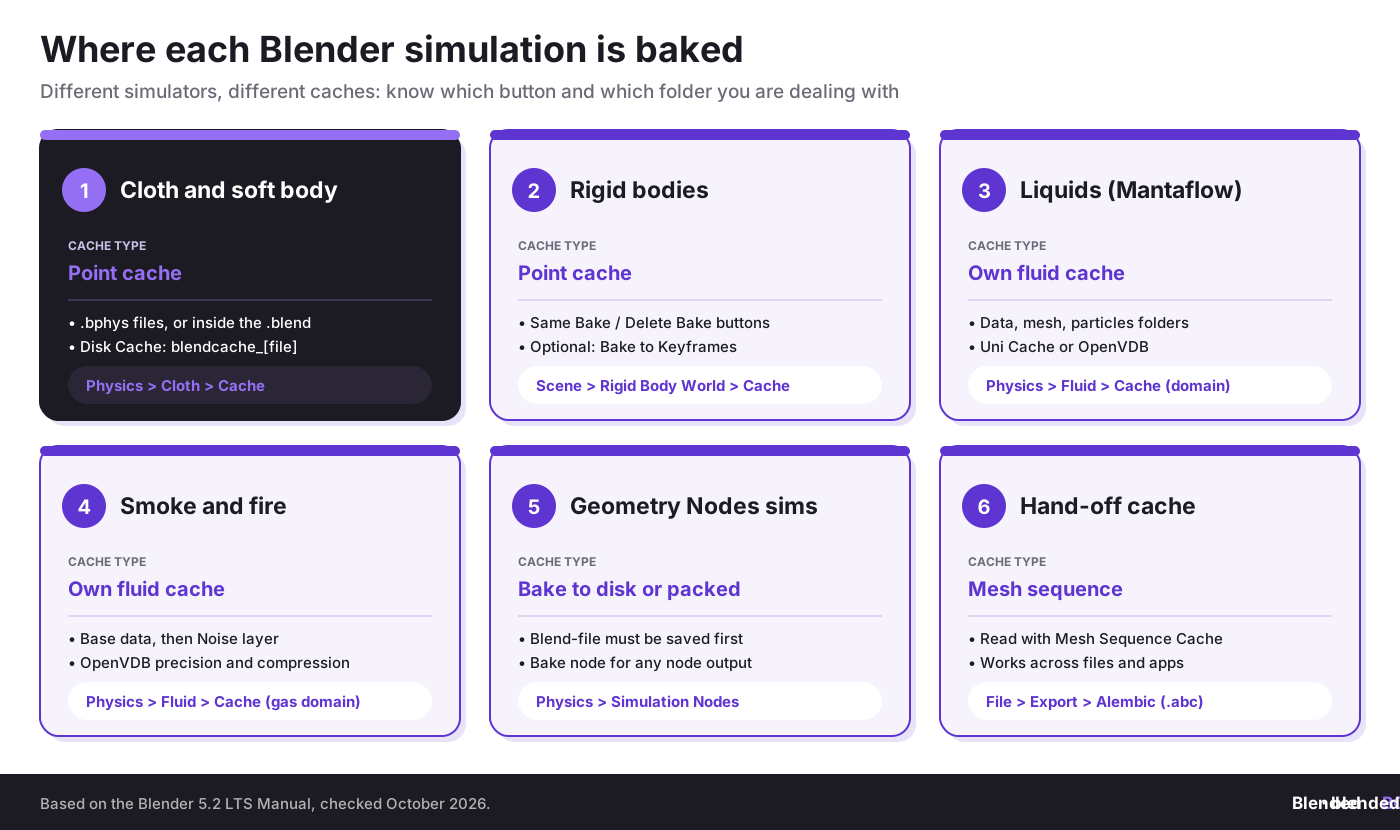
Blender has more than one caching system, and the buttons are in different places. Knowing which one you are dealing with saves a lot of confusion.
Baking Cloth and Soft Body Simulations
Cloth uses the general point cache. Select the cloth object, open the Physics tab and expand the Cache panel. The key settings and buttons are:
- Start and End: the simulation only runs between these frames. If your shot is longer than the default range, raise End before you bake.
- Disk Cache: stores the bake as files in a blendcache_[filename] folder next to the .blend instead of inside it. The file must be saved first. This keeps the .blend small and lets you see exactly what was baked.
- Cache name: if an object has more than one physics system, name each cache. Unnamed caches on the same object can overwrite each other’s files.
- Bake and Delete Bake: bake the selected system, or unlock it for changes. You need to be in Object Mode to bake.
- Calculate to Frame and Current Cache to Bake: bake up to the current frame, or keep a cache you already played through as a bake.
- Bake All Dynamics: bakes every physics system in the scene, which matters when cloth collides with animated or simulated objects.
Two cloth-specific tips from the manual: if you move or edit the cloth object after simulating, clear the cache, and use the same Subdivision Surface level for viewport and render, because a cache is stored per subdivision level. Most cloth speed gains come from simulating a lighter mesh and adding subdivision after the cloth modifier. For more on modifier order, see animation modifiers for a non-destructive workflow.
Baking Liquid Simulations
Liquids, smoke and fire all run on the Mantaflow solver and use their own cache, set on the domain object. The fluid cache settings start with a Cache Directory; inside it, each kind of data (simulation data, mesh, particles, noise) gets its own subfolder. The cache Type decides how you bake:
- Replay: bakes while you play the animation in the viewport. It only works with Playback Sync set to Play Every Frame.
- Modular: bakes step by step. You bake the base data first, then the mesh, particles or noise from their own panels, and you can re-bake one layer without redoing the others.
- All: one button bakes everything with the current settings.
Modular is the most efficient choice for production. Lock the base motion at a resolution you are happy with, then iterate on the mesh or particle details without paying for the whole simulation again. The Resumable option lets you pause and continue a bake, but it writes extra data, so the manual advises against it at high resolutions.
Speed and quality in a liquid simulation come mostly from the domain settings:
- Make the domain only as big as the shot needs. Resolution Divisions are measured along the longest side of the domain, so a domain twice as big needs twice the divisions for the same detail.
- Test at low resolution first. Get the timing and motion right at a low value, then raise it for the final bake.
- Watch the CFL number and time steps. Higher CFL values mean fewer steps and faster bakes but less accurate fast-moving fluid; lower values are more accurate but slower.
- Simplify obstacles. The manual notes that obstacles with heavy modifiers, such as a high Subdivision Surface level, increase simulation time. Use a low level or a proxy collider.
- Choose the mesh cache format on purpose. Binary Object files are compressed; Object files are plain and readable by other tools.
Baking Smoke and Fire
Smoke and fire use a gas domain with the same cache panel. Two extra features make gas simulations much cheaper to bake:
- Adaptive Domain: the domain shrinks to fit the gas, so empty voxels are left out of the calculation. Increase the margin for fast-moving smoke so it is not cut off.
- Noise: adds finer, wavelet-turbulence detail on top of a low-resolution base simulation. With the Modular cache type you bake the base data first and then Bake Noise separately, so you can tune the detail without re-simulating the motion.
For volumes, the cache Format can be Blender’s Uni Cache or OpenVDB. OpenVDB stores all grids for a frame in a single .vdb file and lets you choose compression (Zip, Blosc or None) and precision (Full 32-bit, Half 16-bit or Mini 8-bit where possible). Half precision is a good default for final smoke: it cuts file size while keeping visible detail. The gas Empty Space setting also helps: with OpenVDB caching it reduces cache size and speeds up rendering.
Volumes are expensive to render as well as to simulate. Our guides on optimizing large Blender scenes and GPU vs CPU rendering cover the render side.
Geometry Nodes Simulations and the Bake Node
Simulation zones in Geometry Nodes let one frame’s result feed the next, so you can build custom effects such as growing structures, scattering debris or simple particle systems. They are cached automatically during playback, and the valid cache is shown in the Timeline. When the result is final, bake it from the Physics tab under Simulation Nodes. The blend-file must be saved first, because the bake is written relative to it; the folder can be changed per modifier.
The Bake node goes further: it can store any part of a node tree, for a single frame (Still) or an animation, either on disk or packed into the .blend. That is useful for freezing an expensive scatter or remesh so the rest of the tree stays interactive. The manual warns that this bake format is not an exchange format and is not guaranteed to load in other Blender versions; volumes are the exception, as they are saved as OpenVDB. If you are new to node-based effects, read our Geometry Nodes introduction and the guide to particle systems for hair, grass and crowds.
Baking for Render Farms and Team Hand-offs
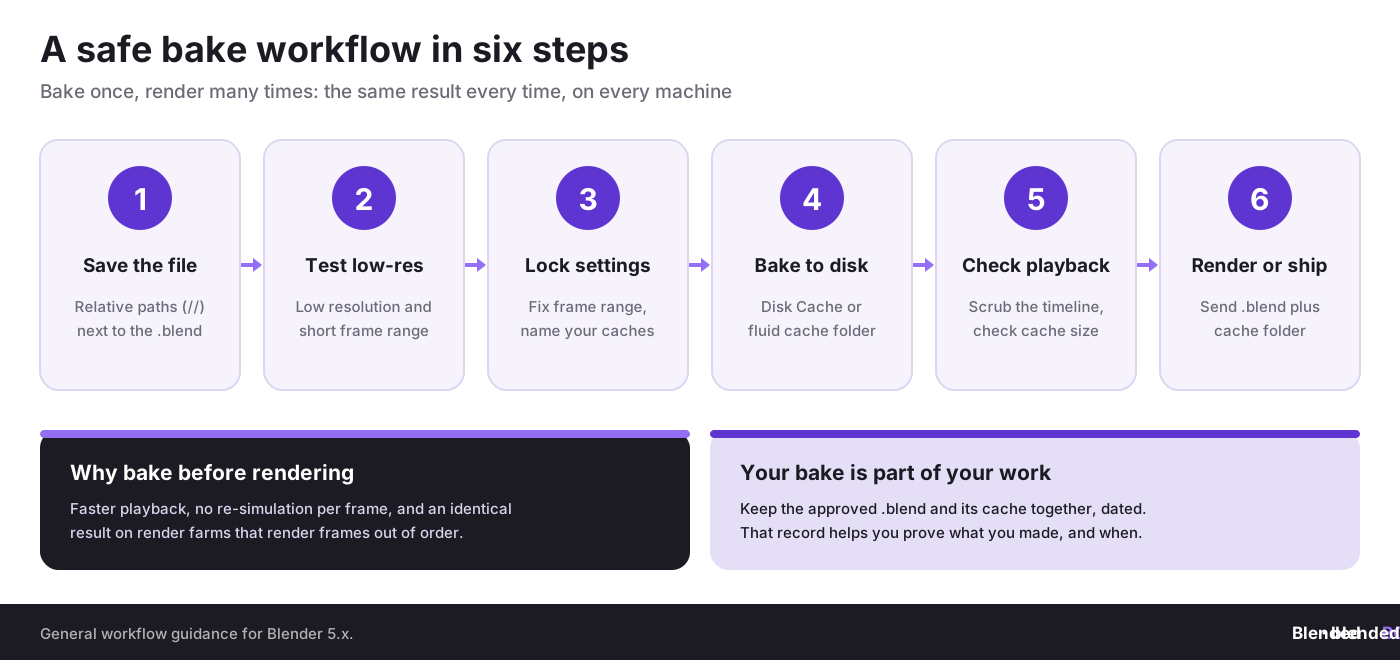
Render farms render frames in parallel and out of order, so an unbaked simulation will either be recalculated on each machine or break entirely. Before you upload:
- Bake everything to disk, using Bake All Dynamics for point-cache systems and the domain cache for fluids.
- Use relative paths. A cache folder that starts with // is found relative to the .blend, so it still works on another computer.
- Send the cache with the file. Upload the .blend together with its blendcache_ and fluid cache folders, keeping the same folder structure.
- Check the farm’s Blender version. Match the version you baked with, especially for Geometry Nodes bakes.
- Render a few test frames from different parts of the shot before submitting the full job.
Compare services in our overview of render farm options for Blender, and see how to render animations efficiently for output settings. If you hand a shot to another artist or a game engine, an Alembic export of the baked mesh is often the most portable option.
Bakes, Versions and Proof of Authorship
A final bake is the product of many decisions: the setup, the settings, the approved take. Treat it as part of your work, not as a temporary file. Keep the approved .blend and its cache folder together, with clear version names and dates, and back them up. Our guides to saving and backing up Blender projects and auto-save and version control explain how.
Ownership is simple on paper. The Blender license page states that what you create with Blender is your sole property; the GPL covers the software, not your art. Proving that a specific simulation shot is yours, and when you made it, is harder. Dated project files help, and registering important work helps more. Start with copyright basics for 3D artists and our step-by-step guide to registering copyright.
Turn your baked shots into proof of ownership
BlendedBoris adds a blockchain timestamp to your Blender work, so you have dated evidence of authorship before you share a simulation, send it to a client or post it online.
👉 Register your art with BlendedBoris
Common Mistakes When Baking Simulations
- Baking an unsaved file. Disk caches and Geometry Nodes bakes are written relative to the .blend, so save first.
- Forgetting the frame range. The simulation only runs between the cache Start and End frames, not the scene range.
- Leaving caches unnamed. Several physics systems on one object with unnamed caches can overwrite each other’s files.
- Baking final resolution first. Test motion and timing low, then bake high once.
- Absolute cache paths. A path like C:\Users\… breaks on another machine or a render farm. Use relative // paths.
- Editing after the bake. Moving a collider or changing the cloth mesh after baking means the bake no longer matches. Delete it and bake again.
- Deleting old bakes without a backup. The approved bake is part of the delivered work and of your record of authorship.
Conclusion
Baking is the step that turns a fragile simulation into a dependable asset. Know which cache your simulator uses, test at low resolution, bake to disk with relative paths, and keep the approved bake with the project. Your viewport stays fast, your renders stay consistent and your render farm gets exactly what you approved. Then protect the result: a dated, registered record shows that the shot is yours. For more speed tips, see Blender preferences for optimal performance and the Blender hardware guide.
People Also Ask:
What does baking a simulation mean in Blender?
Baking stores the calculated result of a physics simulation, frame by frame, so Blender can play and render it without simulating again. A baked cache is protected until you delete the bake.
Do I need to bake before rendering?
The Blender Manual recommends it. Baking avoids re-simulating during rendering, prevents glitches and guarantees the same result every time, which is essential on render farms.
Where are baked simulations saved?
Point caches (cloth, soft body, rigid body) are saved inside the .blend, or in a blendcache_[filename] folder with Disk Cache. Fluid and smoke bakes go to the domain’s Cache Directory. Geometry Nodes bakes are saved next to the .blend or packed into it.
Why is my fluid simulation so slow to bake?
Bake time grows quickly with Resolution Divisions and domain size. Shrink the domain, test at low resolution, simplify obstacles and use the Modular cache type so you only re-bake what changed.
What is the difference between Bake and Bake All Dynamics?
Bake bakes the selected physics system. Bake All Dynamics bakes every point-cache physics system in the scene, which matters when different simulations interact.
Can I edit a simulation after baking it?
Not directly. Delete the bake, change the settings or objects, and bake again. Fluids with the Modular cache type let you free and re-bake one layer, such as the mesh or noise, separately.
FAQ on Simulation Baking for Cloth, Fluid and Smoke
Which cache type should I use for fluids?
Modular is usually best for production because you can bake data, mesh, particles and noise separately. Replay is handy for quick previews, and All bakes everything with one click.
Is OpenVDB better than Uni Cache for smoke?
OpenVDB stores every grid for a frame in one .vdb file and offers compression and precision options, so it is the usual choice for production and for using volumes in other tools.
How do I send a baked simulation to a render farm?
Bake to disk with relative paths, then upload the .blend together with its cache folders in the same structure. Match the farm’s Blender version and render a few test frames first.
Can I reuse a baked simulation in another file or app?
Export the baked mesh as Alembic (.abc) and read it back with the Mesh Sequence Cache modifier, or import it into another application that supports Alembic.
Do Geometry Nodes bakes work in other Blender versions?
Not reliably. The manual says data baked with one Blender version is not guaranteed to load in another, except volumes saved as OpenVDB. Re-bake after a version change.
Who owns a simulation I bake in Blender?
You do. Blender’s license says what you create with it is your sole property. To prove authorship, keep dated project files and consider registering important work, for example with a BlendedBoris timestamp.


